How to Reset Nintendo Switch in 2026: Soft, Hard & Factory Reset Guide
Picture this: You’re deep into a heated Mario Kart race or exploring Hyrule in Zelda, and bam—your Nintendo Switch freezes solid. Heart sinks, right? We’ve all been there. Whether it’s the original Nintendo Switch, OLED, Lite, or the shiny new Nintendo Switch 2 (out since June 2025), knowing how to reset Nintendo Switch can save the day.
Resetting isn’t scary—it’s like giving your console a quick nap or a deep clean. In this guide, I’ll walk you through every method: soft resets for quick fixes, hard resets to keep your saves safe, and factory resets for selling or major issues. Updated for 2026, with official Nintendo steps. Let’s get your Switch back to 100%—no tech degree needed!
Why Reset Your Nintendo Switch? Common Pain Points
Before diving in, here’s why you might need to restart Nintendo Switch or go further:
- Frozen screen or crashes: Games like Pokémon or Animal Crossing glitch out.
- Won’t connect to Wi-Fi: Online play in Splatoon fails.
- No power or blank screen: Battery woes after long sessions.
- Forgot parental controls PIN: Kids’ restrictions locked you out.
- Selling or gifting: Wipe it clean for the next owner.
- Software bugs post-update: New patches sometimes hiccup.
Pro tip: Always back up saves via Nintendo Switch Online cloud first. Local saves on microSD? Eject safely.
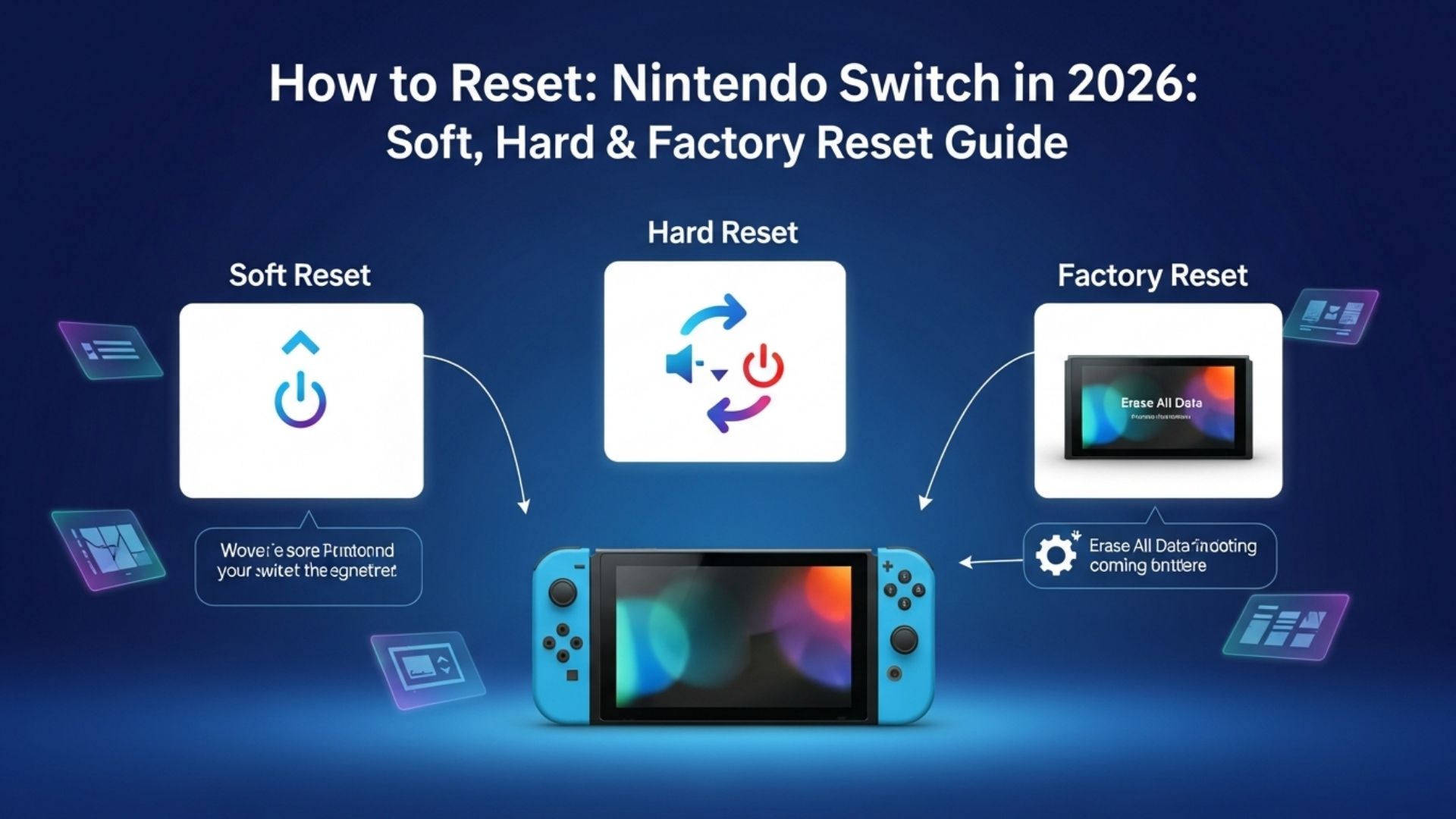
How to Soft Reset Nintendo Switch (Quick Force Restart)
The easiest fix for minor glitches—like audio cutting in Super Mario Odyssey. This soft reset Nintendo Switch refreshes without touching data.
For Original Nintendo Switch (OLED/Lite too)
- Press and hold the POWER button (top right) for 12-20 seconds until it shuts off.
- Wait 10 seconds.
- Press POWER once to turn on.
If super frozen, hold for 20 seconds—works like magic!
For Nintendo Switch 2
Same steps! Hold POWER 3+ seconds for Power Menu if responsive, or force hold 20 seconds.
Real-life win: My Switch 2 froze mid-Mario Kart World launch party. 15-second hold, and we were racing again. No saves lost!
How to Restart Nintendo Switch via Power Menu (Gentle Option)
Prefer menus? Use this Nintendo Switch restart for everyday reboots.
- Press and hold POWER button for 3 seconds.
- Pick Power Options > Restart.
- Done—console reboots smoothly.
Works on both original and Switch 2. Great for sleep mode exits or quick refreshes.
Hard Reset Nintendo Switch: Fix Deeper Issues Without Losing Saves
When soft resets fail—like persistent crashes—this hard reset Nintendo Switch (aka initialize without deleting save data) restores settings but keeps your progress.
Warning: Software on microSD (not saves) may need reinstall. Cloud backup recommended.
Original Nintendo Switch (Maintenance Mode)
- Fully power off (hold POWER 12 seconds).
- Hold Volume Up (+) + Volume Down (-) + press POWER.
- Select Initialize Console Without Deleting Save Data.
- Enter PIN if parental controls set. Restart!
Nintendo Switch 2 (Recovery Mode)
- Power off completely (hold POWER 3 sec > Power Off).
- Hold Volume Up (+) + Volume Down (-), press POWER once.
- Hold volumes until Recovery Mode appears.
- Choose Restore Settings (Keep User Data) or Restore Factory Settings Without Deleting Save Data.
- Confirm (enter passcode if needed).
Expert tip: This clears caches, IDs, and bugs but retains saves, screenshots, and Nintendo Account link. Re-download games from eShop after.
| Reset Type | Original Switch | Switch 2 | Data Kept? |
|---|---|---|---|
| Soft | Hold POWER 12-20s | Same | All |
| Hard (No Save Loss) | Vol+/- + POWER > Maintenance Mode | Vol+/- + POWER > Recovery Mode | Saves, users, screenshots |
| Power Menu Restart | Hold POWER 3s > Restart | Same | All |
Factory Reset Nintendo Switch: Full Wipe for Selling or Last Resort
Selling your old Switch before upgrading to Switch 2? Or total meltdown? Factory reset Nintendo Switch erases everything—like day one.
Big disclaimer: All local data gone! Cloud saves downloadable after re-link. Unlink accounts online if needed. microSD software unusable (but pics/videos ok).
Both Consoles (System Settings Menu)
- Go to HOME > System Settings (gear icon).
- Select System (scroll down).
- Hit Formatting Options or Data-Clear Options (bottom).
- Choose Restore Factory Settings or Initialize Console.
- Confirm > Next. Wipes in minutes!
Switch 2 extra: Also via Recovery Mode for full reset, but menu is easier.
After: Create new user, link Nintendo Account, redownload from “Virtual Game Cards.”
Story time: Gifted my niece my old OLED—factory reset took 5 mins. She set it up fresh, no old Fortnite clutter. Perfect!
Troubleshooting: Nintendo Switch Won’t Turn On or Blank Screen
Dead battery? No panic.
- Unplug AC adapter (wall + console/dock) for 30 seconds.
- Hold POWER 20 seconds (force shutdown).
- Plug back, charge 15-30 mins with official adapter.
- Press POWER to boot. Update system if alive.
If docked TV issues: Use official dock. Still dead? Repair time—contact Nintendo.
Reset Nintendo Switch Parental Controls (Forgot PIN?)
Quick fix: During hard/factory reset, enter inquiry code from support.nintendo.com into parental app/site. Or full factory wipe removes them.
Bonus: Clear Cache on Nintendo Switch 2
For eShop glitches:
- System Settings > System > Data-Clear Options > Clear Cache.
Conclusion:
There you have it—your ultimate how to reset Nintendo Switch playbook for 2026. From quick soft resets to full factory wipes, these steps keep your gaming life glitch-free. Remember: Backups are your best friend, and official Nintendo methods are foolproof.
Grab that Joy-Con, fire up Super Mario Party Jamboree, and play worry-free. Got a Switch 2? Enjoy magnetic Joy-Cons and 4K docked glory. Questions? Drop ’em below—happy gaming, friends!
FAQ:
Q: How do I soft reset Nintendo Switch if it’s frozen?
A: Hold the POWER button for 12-20 seconds until it shuts off, wait 10 seconds, then press POWER to turn on. Works for original and Switch 2—no data lost. Perfect for quick how to reset Nintendo Switch fixes like crashes.
Q: What’s the difference between hard reset and factory reset Nintendo Switch?
A: Hard reset (Recovery/Maintenance Mode) keeps saves/screenshots; factory erases all. Use hard for bugs, factory for selling. Always backup cloud saves before factory reset Nintendo Switch.
Q: How to factory reset Nintendo Switch 2 without losing data?
A: Enter Recovery Mode: Hold Vol+ & Vol-, press POWER. Select “Restore Settings (Keep User Data).” Saves stay safe—ideal how to reset Nintendo Switch for glitches.
Q: Nintendo Switch won’t turn on—how to reset it?
A: Unplug charger 30 seconds, hold POWER 20 seconds, recharge 30 mins, power on. Update system after. Covers restart Nintendo Switch power fails.
Q: Can I reset parental controls on Nintendo Switch?
A: Use hard/factory reset or get inquiry code from Nintendo support site/app. Wipes PIN during how to reset Nintendo Switch process—easy for forgotten locks