Nintendo Switch Not Turning On? Quick Fixes to Get Back to Gaming Fast
Hey there, fellow gamer! Imagine this: you grab your Nintendo Switch, excited for a quick round of Zelda or Mario Kart, press the power button… and nothing happens. Just a blank, black screen staring back at you. Your heart sinks a little. If your Nintendo Switch not turning on has you stressed, take a deep breath—you’re definitely not alone.
This is one of the most common problems Switch owners face, whether you have the original model, the portable Switch Lite, or the fancy OLED version. The good news? Most of the time, it’s not a total disaster. It’s usually something simple like a dead battery or a frozen system. In this guide, we’ll walk through the most common causes and easy fixes so you can get back to playing in no time.
Read More : Nintendo Switch Minecraft Features, Updates, and Multiplayer Tips
Common Reasons Your Nintendo Switch Won’t Turn On
Before jumping into fixes, let’s figure out what might be going wrong. Here are the usual suspects:
- Completely drained battery – This is by far the most common cause. If you haven’t played in weeks or months, the battery can drop to zero. The Switch needs a little juice before it even shows the charging icon.
- Faulty or unofficial charger – Third-party chargers often don’t deliver the right power (the Switch needs 15W). This can stop charging completely or even damage the port over time.
- Software freeze or glitch – Sometimes the system gets stuck, especially after a crashed game or interrupted update.
- Hardware issues – A bent USB-C port, debris inside, or drop damage (especially common with the Lite) can block power.
- Overheating protection – The Switch shuts itself down if it gets too hot, and it might refuse to start until it cools.
- Battery age – Older Switches (2017–2020 models) can have worn-out batteries that no longer hold charge well.
Thousands of players report these same issues every year on forums and social media. The bright side? Over 70% of cases are fixed without sending it for repair.
First Steps to Try When Your Switch Won’t Turn On
Start with the easiest things. Most people get their console working again in under an hour with these.
- Charge it the right way Plug the official Nintendo AC adapter directly into the console (skip the dock for now). Leave it for at least 30 minutes—even if nothing shows on screen. Deeply discharged batteries sometimes need time before the tiny battery icon appears in the corner.
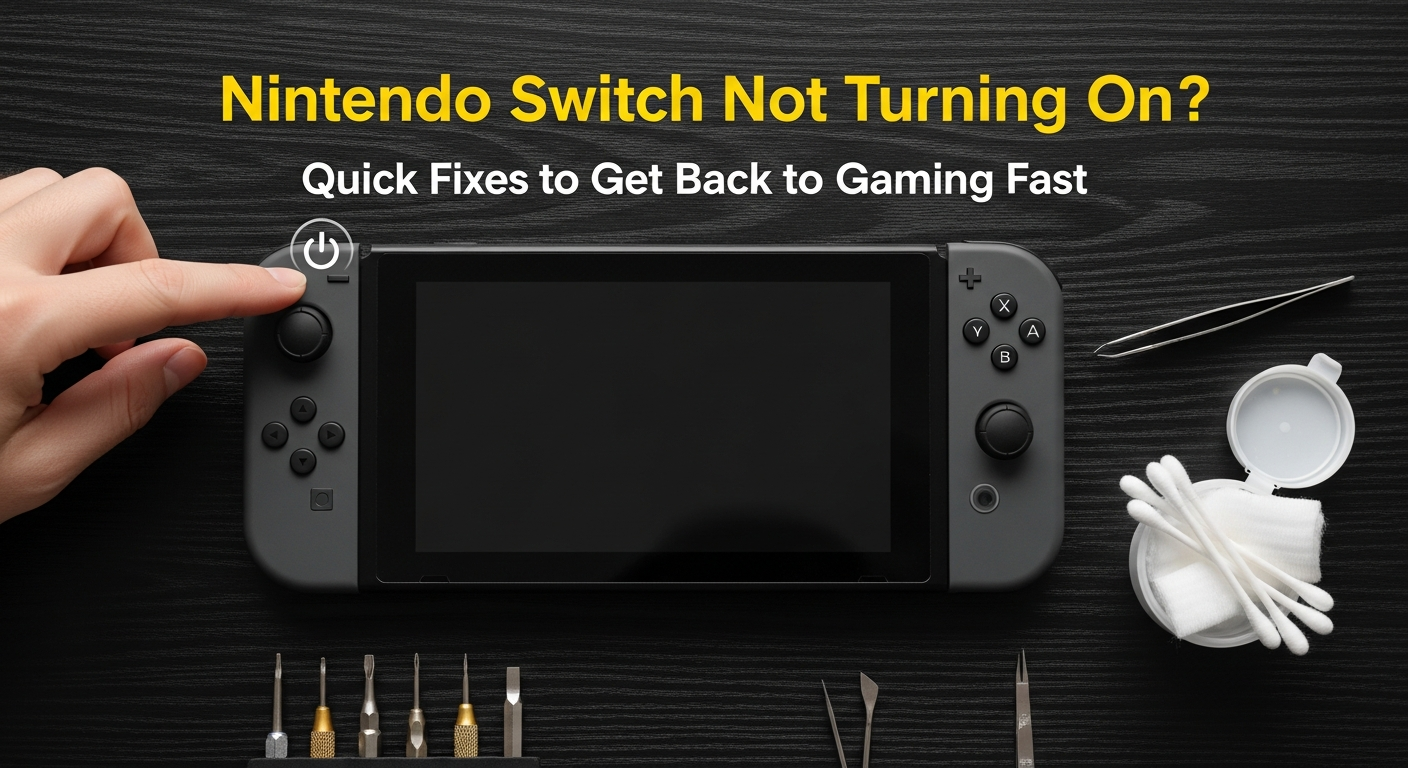
- Do a hard reset Hold the power button (on the top edge) for a full 20 seconds. Release, then press it once normally to turn on. This forces a complete shutdown and clears temporary glitches.
- Reset the AC adapter Unplug the charger from both the wall and the Switch. Wait 30–60 seconds, then plug it back in directly to the console. This clears any stored power glitch in the adapter.
- Check everything visually Look at the cable for frays, the USB-C plug for bends, and the port for dust. Gently clean the port with compressed air—never use metal tools.
- Test another charger (if you have one) Borrow an official charger or use the one from a Pro Controller to rule out your adapter being the problem.
These five steps fix the majority of “dead” Switches.
Advanced Fixes If the Basics Don’t Work
Still nothing? Let’s try a few deeper tricks.
- Try recovery mode Hold Volume Up + Volume Down + Power buttons together for about 15 seconds, then release and press Power once. This can bypass software corruption. If you see the Nintendo logo, you’re in!
- Look for faint screen glow In a completely dark room, shine a phone flashlight at an angle across the screen. If you see a very faint image, the console is on but the backlight failed—a rarer hardware issue.
- Update the system (if it finally boots) Go straight to System Settings > System > System Update. Old firmware can cause power bugs.
How the Different Switch Models Behave
Not all Switches are the same, so here’s what to keep in mind:
- Original Switch and OLED – These can be docked, but always start troubleshooting in handheld mode. Docking sometimes hides charging issues.
- Switch Lite – No dock at all, so everything is direct charging. Because it’s super portable, the USB-C port takes more wear from travel and drops.
All models lack a power light, so you have to watch the screen for signs of life.
When It’s Time to Ask for Help
If you’ve tried everything multiple times and still get nothing, it might be a deeper problem like a failed battery or motherboard issue. Contact Nintendo support online—they’ll guide you through a repair request. If your console is under the 1-year warranty, repairs are usually free. Out of warranty, battery replacements typically cost $50–$100.
Avoid random “DIY battery swap” videos unless you’re experienced—mistakes can make things worse.
Preventing Future Power Problems
A little care goes a long way:
- Always use official Nintendo chargers and cables.
- Charge regularly—even if you’re not playing, top it up every few months.
- Keep software updated.
- Store in a cool, dry place (not a hot car!).
- For long storage, charge to about 50% and check every couple of months.
Quick Comparison of Common Fixes
Here’s how the most popular fixes stack up based on user reports:
| Fix Method | Estimated Success Rate | Time Needed | Best For |
|---|---|---|---|
| Proper charging + wait | 60–70% | 30–60 min | Dead battery |
| Hard reset | 50–60% | 1–2 min | Software freezes |
| Alternate official charger | 40–50% | 10–20 min | Bad charger |
| Recovery mode | 20–30% | 5 min | Corrupted software |
| Professional repair | 90%+ | Days/weeks | Real hardware failure |
Final Thoughts Nintendo Switch Not Turning On
A Nintendo Switch not turning on can feel scary in the moment, but the vast majority of cases are totally fixable at home with a little patience and the right steps. Start simple—charge properly and do a hard reset—and work your way up only if needed.
You’ve got this! Once your Switch lights up again, you’ll be back to your favorite games in no time. Happy gaming!
FAQs Nintendo Switch Not Turning On
Q: Why won’t my Nintendo Switch turn on even after charging overnight?
A: The battery might be completely drained and needs 30–60 minutes with the official charger before showing any sign. Try a hard reset (hold power button 20 seconds) while plugged in. If nothing, test a different official charger or check the USB-C port for damage.
Q: How do I hard reset a Nintendo Switch that won’t turn on?
A: Hold the power button on the top edge for a full 20 seconds, even if the screen stays black. Release, wait a few seconds, then press the power button once to start. Keep it plugged into the official charger during this process.
Q: My Nintendo Switch shows a black screen but no power— is it broken? A: Not necessarily! Most black screen no power issues are from low battery, bad charger, or software freeze. Charge directly with the official adapter for 30 minutes and try a hard reset. Only a small percentage need actual repair.
Q: Does the Nintendo Switch Lite have different fixes when it won’t turn on?
A: Yes—the Lite can’t dock, so always charge directly. It’s more prone to port damage from drops. Follow the same charging and hard reset steps, but inspect the USB-C port carefully for bends or dirt.
Q: What should I do if my old Nintendo Switch won’t power on anymore?
A: Older models often suffer battery degradation. Start with official charging and hard resets. If those fail, the battery may need replacement—contact Nintendo support for repair options, especially if still under extended coverage.